



Gmail, Deliverability, Troubleshooting
Gmail Spam Folder? Here's the 7-Step Fix (2026)
Gmail's spam filter is the toughest in the business. If your mail is landing there, the fix is rarely a few changed words; it is usually two or three problems at once. Here is how to find them and the order to fix them in.

Updated 9 min read

In this article
- Step 0: Confirm it is really spam, and where
- Gmail's sender requirements (since February 2024)
- Step 1: Fix authentication
- Step 2: Read Google Postmaster Tools
- Step 3: Audit your volume curve
- Step 4: Warm up, properly
- Step 5: Audit your content
- Step 6: Clean your list
- Step 7: Recover, then prevent
- What not to do
- How Warmerly helps
- Frequently asked questions
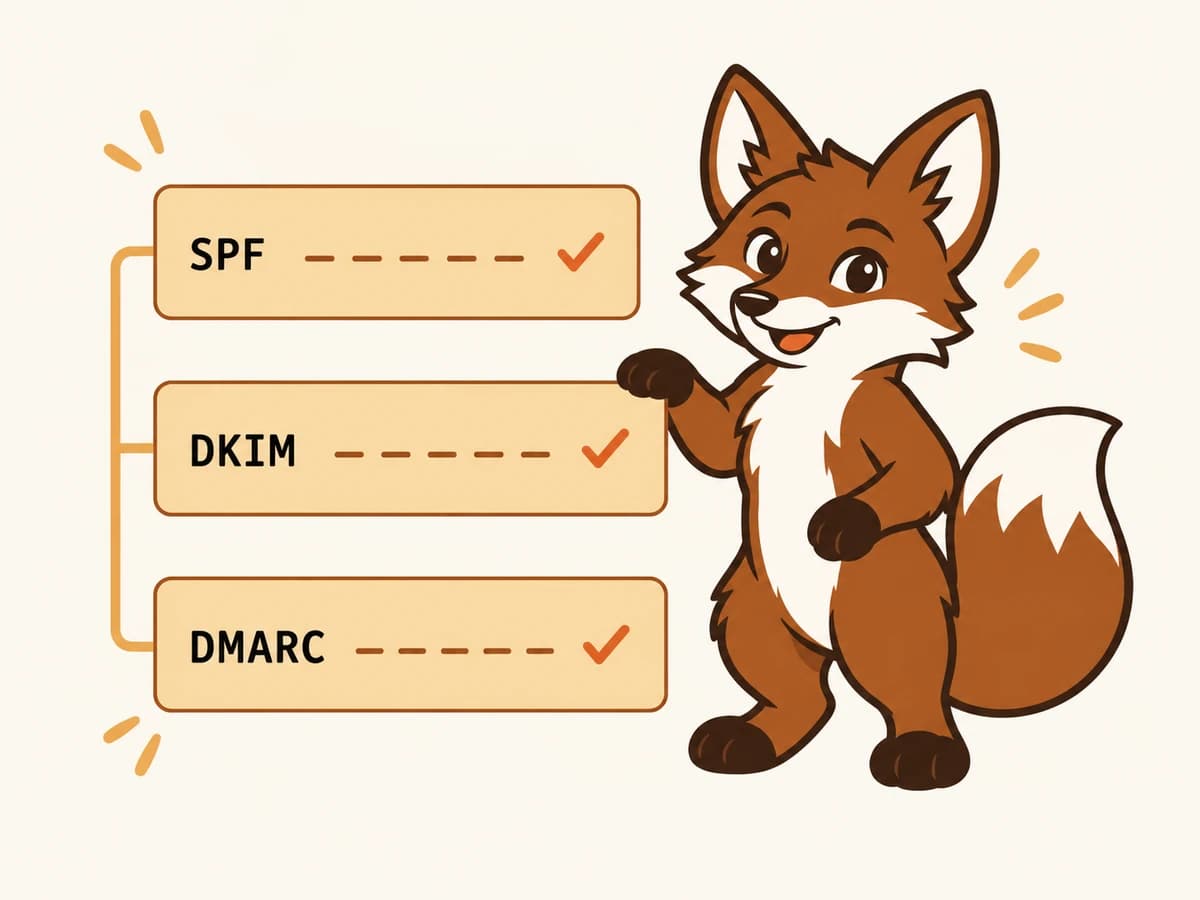
To stop your emails going to Gmail's spam folder, fix things in this order: authentication (SPF, DKIM and DMARC, all passing and aligned with your From domain), then your reputation in Google Postmaster Tools, then sending volume, warmup, content and list quality. Since February 2024 Gmail requires SPF or DKIM from every sender, and senders of 5,000 or more messages a day to Gmail must also publish DMARC, align it, offer one-click unsubscribe and keep the spam rate under 0.3%. Mail that misses those rules is filtered or rejected no matter how good it is.
The seven steps below go from the cause that is quickest to confirm to the slowest to recover. Do them in order: rewriting subject lines while DKIM is failing wastes a week.
Step 0: Confirm it is really spam, and where
Before fixing anything, find out what is actually happening. Send a normal message from the affected mailbox to a Gmail address you control, then open it and choose Show original from the three-dot menu. Google prints SPF, DKIM and DMARC results at the top. Then send to an Outlook address too: if only Gmail sends you to spam, the problem is reputation or engagement at Google; if both do, look at authentication and your list first.
Gmail's sender requirements (since February 2024)
| Requirement | All senders | 5,000+ messages a day to Gmail |
|---|---|---|
| SPF or DKIM authentication | Required | Required |
| DMARC record (p=none is the minimum) | Good practice | Required |
| DMARC alignment (From domain matches SPF or DKIM domain) | Good practice | Required |
| One-click unsubscribe on marketing mail | Good practice | Required |
| Spam rate reported in Postmaster Tools | Keep it low | Under 0.3% |
Most cold senders never reach 5,000 a day from one domain, but meet the bulk rules anyway. They are cheap to satisfy, and a domain that passes all of them looks like a legitimate sender to every provider, not just Gmail.
Step 1: Fix authentication
Look up the three records for your sending domain (a terminal works, or the free checker):
- dig TXT yourdomain.com: look for exactly one record starting v=spf1.
- dig TXT selector._domainkey.yourdomain.com: your DKIM public key. Google Workspace uses the selector google by default; other providers use their own.
- dig TXT _dmarc.yourdomain.com: your DMARC policy.
Common faults: two SPF records on one domain (an automatic SPF failure), SPF that needs more than 10 DNS lookups (the limit in the SPF standard), SPF ending in +all, DKIM not switched on in your provider's admin console, a short DKIM key (generate a 2048-bit one), and no DMARC record at all. Start DMARC at p=none with a rua address you actually read.
Then check alignment. DMARC passes only when the domain in your From address matches the domain that passed SPF or DKIM. If you send through a platform that signs with its own domain, set up a custom DKIM key on your domain in that platform, or Gmail sees a pass that does not count.

Step 2: Read Google Postmaster Tools
Google Postmaster Tools (postmaster.google.com) is free and shows how Gmail sees your domain: the spam rate its users report, authentication results, and whether you meet the sender requirements. Verify your domain with a DNS TXT record to get access. Two caveats: data only appears once you send a meaningful daily volume to Gmail users, and the dashboards Google offers have changed over the years, so use what it shows you rather than a screenshot in a guide.
The number to watch is the user-reported spam rate. If it approaches 0.3%, Gmail's filters will treat your mail harshly whatever else you fix. That rate comes from people clicking Report spam, so it points at list targeting and relevance, not DNS.
Step 3: Audit your volume curve
Gmail is wary of volume spikes, especially from new domains and mailboxes. Going from zero to 200 cold emails a day in a week looks like a hijacked account. Pull back to the level you sent at when mail was landing, then add about 20% a week. For cold outreach, 30 to 50 emails a day per mailbox is a common safe ceiling; add mailboxes to grow volume rather than pushing one inbox harder.
Step 4: Warm up, properly
A new or long-quiet mailbox has no reputation, and Gmail treats no reputation as a reason for caution. Warmup builds it with low-volume conversational mail between real mailboxes that open, reply, mark important, and move messages out of spam when they land there. Give a new domain two to three weeks before real volume, and keep warmup running at a lower level once campaigns start so quiet weeks do not undo it.
Avoid warmup that only sends and opens. Rescuing mail from spam and replying in the thread are the signals that carry weight; a stream of opens without replies is a pattern filters have long been trained to recognise.
Step 5: Audit your content
Content matters less than most people think, but a few things reliably hurt at Gmail:
- Many links, or links through URL shorteners and redirect chains.
- Emails that are one image with little or no text.
- Tracking pixels and link tracking on a brand-new domain; consider turning open tracking off for cold mail.
- A display name that does not match the sender, or a Reply-To on another domain.
- HTML pasted from a design tool, with hidden text or broken markup.
Write the way you would write one email to one person: plain text or light HTML, one link at most, and a clear reason you are writing to them.
Step 6: Clean your list
Bounces and spam reports damage reputation faster than anything else. A common rule of thumb is to keep bounces under about 2%. Verify every list before sending, drop role addresses such as info@ and sales@, treat catch-all domains with care, and never re-send to anyone who has marked you as spam or unsubscribed. For marketing mail, add a one-click unsubscribe header; people who cannot leave easily click Report spam instead.
Step 7: Recover, then prevent
Gmail reputation recovers slowly. After fixing the causes, give the domain about two weeks of clean, lower-volume sending with warmup running before judging the result. Reintroduce campaigns at around a quarter of your previous volume and raise it weekly. Then keep watching: a DNS change, a new sending tool or one bad list can undo the recovery in a day.
| Symptom | Most likely cause | Step |
|---|---|---|
| Show original shows SPF, DKIM or DMARC fail | Authentication or alignment | 1 |
| Spam at Gmail only, fine at Outlook | Gmail reputation or engagement | 2 to 4 |
| Landed fine, then suddenly spam | Volume spike, bad list or DNS change | 3, 6, 1 |
| New domain, spam from day one | No reputation yet | 4 |
| High Report spam rate in Postmaster Tools | Targeting, relevance, no easy unsubscribe | 6 |
What not to do
- Do not buy a fresh domain and send full volume from it on day one. A new domain with no history is the fastest way into spam.
- Do not ask friends to mark your mail as not spam in bulk. A handful of rescues from people who never write to you is not the pattern Gmail rewards.
- Do not keep sending while you diagnose. Pause or cut volume sharply; every message that lands in spam and gets ignored adds to the problem.
- Do not add a second SPF record for a new tool. Merge it into the existing one, or SPF fails for everything.
- Do not judge the fix by open rates. Apple Mail Privacy Protection and image blocking make opens unreliable; use placement tests and replies.
How Warmerly helps
Warmerly automates the ongoing half of this: warmup on every mailbox with spam-folder rescue every 10 minutes, inbox placement tests across five providers so you see Gmail and Outlook results separately, and daily SPF, DKIM, DMARC and MTA-STS checks that alert you with fix instructions when a record breaks. It also sends the campaigns. Plans start free (1 mailbox, 100 campaign sends a month, no card), then $19/month for 5 mailboxes with a 7-day trial and no charge until day 8. It will not fix a bad list or irrelevant targeting; those remain your job.
Frequently asked questions
Why are my emails going to spam in Gmail?
Usually because of failing or unaligned authentication (SPF, DKIM, DMARC), a new or damaged domain reputation, a sudden jump in volume, or a list that produces bounces and spam reports. Open a test message in Gmail and use Show original to see which authentication checks pass, then work through reputation, volume and list quality.
How do I stop my emails going to spam in Gmail?
Make SPF, DKIM and DMARC pass and align with your From domain, set up Google Postmaster Tools, ramp volume by about 20% a week, warm up new mailboxes for two to three weeks, keep content simple, and verify lists so bounces stay low. Add one-click unsubscribe to marketing mail.
What are Gmail's bulk sender requirements?
Since February 2024, every sender needs SPF or DKIM. Senders of 5,000 or more messages a day to Gmail also need a DMARC record (p=none at minimum), alignment between the From domain and SPF or DKIM, one-click unsubscribe on marketing mail, and a spam rate under 0.3% in Postmaster Tools.
How long does it take to get out of Gmail's spam folder?
Authentication fixes take effect within hours of DNS propagating. Reputation takes longer: expect about two weeks of clean, lower-volume sending with warmup before placement recovers, and longer for a domain with a history of complaints.
Does marking an email as not spam help?
For that recipient, yes, and moving mail out of spam is a strong positive signal at Gmail. That is why good warmup tools rescue messages from spam automatically. It will not outweigh failing authentication or a high spam-report rate.
Why do my emails go to spam in Gmail but not Outlook?
The providers weigh signals differently. Gmail leans heavily on authentication, engagement and user spam reports; Outlook is often stricter with brand-new domains. If only Gmail filters you, check Postmaster Tools and your engagement first.